Specific QuickBooks question?


Didn't find the QuickBooks
tip you were looking for?
Email me so I can answer you directly and then write a blog about it.

Subscribe by Email

Your email:

QuickBooks Tips Blog

Current Articles | RSS Feed RSS Feed

Using Classes in QuickBooks

Submit to Digg digg it |  Add to delicious  delicious |  Submit to StumbleUpon StumbleUpon | Submit to Reddit reddit 

The class feature in QuickBooks can be a valuable and useful tool if used properly.  I feel that class tracking is one of the most under utilized tools in QuickBooks.  I think that the reason this feature is not used more often is because the general QuickBooks user does not understand what the class tracking feature is or what it can do for their business. 

The class feature is used to track different segments of a business.  Examples of different ways to use class tracking can be for businesses with multiple locations, different departments or different streams of revenue. 

The best use of the class system that I have seen is to use it to track sources of income.  Each time the business makes money that particular transaction gets assigned a class which references how the money came into the business.  If the business came from a referral, an inbound lead, an internet search or from a networking event it is all tracked through the class system.  Then at any point in time the business can run a report that will show the source of every penny they ever made.  The level of detail within the class list is totally up to the business owner or QuickBooks user.

To turn on the class feature within QuickBooks go to Edit/Preferences/Accounting Preferences/Company Preferences tab.  Now put a check mark next to "Use Class Tracking."  The class list can be found under Lists/Class list.  Like any other list in QuickBooks you can easily add, delete or edit items on the list. 

The class feature in QuickBooks is certainly not useful for every business.  However, those that can find a use for class tracking may find it to be one of the more valuable tools that QuickBooks offers. 

Balancing the Books: Weekly or Daily Reconciliations in QuickBooks

Submit to Digg digg it |  Add to delicious  delicious |  Submit to StumbleUpon StumbleUpon | Submit to Reddit reddit 

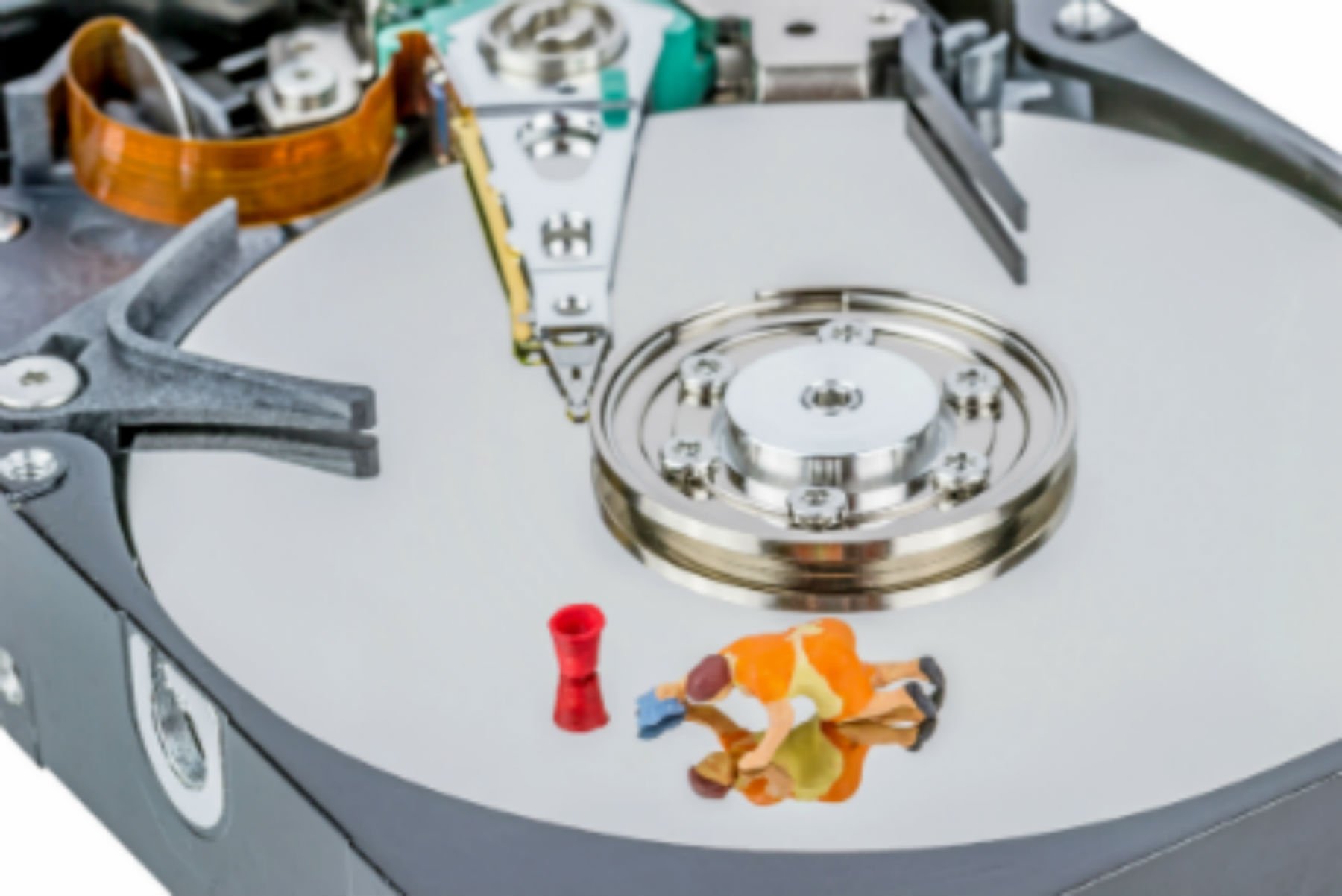
Perfectly Balanced BooksBank reconciliations...I know eeeww!  Balancing the books does not have to be a complicated art that only your accountant has the skills to pull off.  However, reconciling all of the bank accounts, loans and credit cards is an important step in the accounting cycle.  Try this helpful tip to make your reconciliations a breeze.

In a previous post I talked about how sorting your accounts by cleared status can help manage cash flow.  Using this sort feature also allows for reconciliations to be performed on a daily, weekly or monthly basis.  Here is how you perform daily reconciliations in QuickBooks:

Double click on any bank account or credit card account to open the register of that account.  On the right hand side of the register in between the payment and deposit columns you will notice a box that has a check mark in it.  This check mark indicates a transaction being in cleared status.  What this allows you to do is enter transactions as they appear in real time off of you bank or credit card online activity.  You can now reconcile your bank account  daily, weekly or as often as you please.  Pull up your online bank account activity and show ending balances.  You can reconcile to the ending balance of each transaction or each day's activity.

There are two HUGE advantages to doing this:

1.  You monthly reconciliation to your bank statement will be done.   Once your statement is generated just click reconcile and you will have it all done.

2.  By combining this procedure with sorting by cleared status you are gaining even more control over your cash flow.

photo credit: Cannellfan

Memorizing Transactions in QuickBooks

Submit to Digg digg it |  Add to delicious  delicious |  Submit to StumbleUpon StumbleUpon | Submit to Reddit reddit 

QuickBooks has a great feature called "memorized transactions" that many new users fail to take advantage of.  Remember the game memory from growing up?  Remember how frustrating it was when you couldn't remember where you last saw that image?  The memorized transaction feature in QuickBooks is anything but frustrating.

QuickBooks can memorize many different types of transactions including bills, checks/payments, invoices and statement charges.  I use memorized transactions in a few ways for our bookkeeping business.  I memorize statement charges to clients that are on a set monthly fee and have QuickBooks automatically post the charge, which I then email out to our clients.  I also memorize regular monthly bills or payments as a reminder to send out a payment or have an auto pay entered.

Here is how you use the memorized transaction feature in QuickBooks:

  • enter the transaction or open a previous transaction that you wish to memorize
  • when you have the transaction open or highlighted on the account ledger you can go to Edit/Memorize Transaction or simply right click on the transaction and click memorize
  • QuickBooks will automatically launch a "memorize transaction" window.  You can then select to have QuickBooks automatically enter the transaction (you set the specifics of how and when), remind or don't remind you

All memorized transactions and details of them can be found under Lists/Memorized Transaction List.  From there you can enter memorized transactions, edit the details of them or delete them from the list. 

It is a nice little feature.  I most often use it by memorizing a particular transaction and having QuickBooks automatically post the transaction a set number of days in advance and on a frequency that I set.  Obvious uses are to set your monthly mortgage (and any other payments that may not fluctuate) to post automatically a set number of days in advance (how about an automatic transfer from checking to savings).  This again plays into my post on using QuickBooks to help you control and manage cash flow. 

Another way I use the function is to memorize transactions that happen each month but the amounts fluctuate; like a utility bill.  Then when I receive a bill that I have automatically deducted from my checking account or credit card I open my memorized transaction list, double click on the transaction I am working on, then simply set the date to when it will hit my account and change the amount.  It makes managing your monthly bills simple.

 Photo credit: Federico Mariani


QuickBooks as a Cash Flow Tool

Submit to Digg digg it |  Add to delicious  delicious |  Submit to StumbleUpon StumbleUpon | Submit to Reddit reddit 

Having a handle on cash flow should be a major priority of any small business owner.  Business owners are always looking for ways to improve and calculate cash flow.  A great way to avoid cash flow problems is to forecast and manage your businesses financials constantly.

QuickBooks has a great feature built in to it that many people don't utilize that can increase the cash flow management of the business.  It is the "Sort by" feature within the bank register.  This feature can be found on the lower left hand side of any QuickBooks account register.  My preferred way to use this feature is to sort the bank register by "Cleared Status."  What this does is allow you to reconcile the bank account of the business to the daily online bank balance.  By using this feature you are now starting to manage the cash flow of your business.  

When using the "sort by cleared status" feature it gives you a look at where your business currently is with cash flow, but more importantly where it is going.  Now you can see your bank balance as of today but also all pending checks, automatic payments and instransit deposits.

Cash is king; use this feature to get a handle on your cash. 

 

photo credit: Steve Wampler  

QuickBooks Tip: How To Use QuickBooks Effectively

Submit to Digg digg it |  Add to delicious  delicious |  Submit to StumbleUpon StumbleUpon | Submit to Reddit reddit 

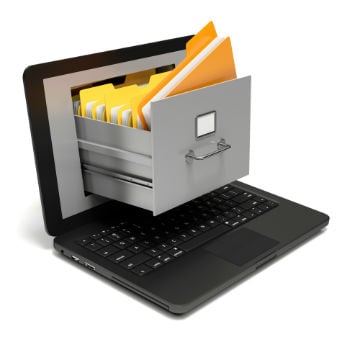
Use quickbooks effectivelyMany businesses fail to use QuickBooks effectively as their bookkeeping software.  Some businesses only use QuickBooks to track only a portion of the accounting cycle (only accounts payable or accounts receivable).  This is a common mistake that many business owners make when setting up QuickBooks for the first time.  Here is our advice for setting up and using QuickBooks effectively:

  • When setting up the company take the time to thoroughly go through the Company Set up interview. 
  • Use QuickBooks for ALL general accounting aspects.  This means it should be your accounting database.
  • Enter all customer, vendor and employee information and learn how to use the features of each.
  • Develop a system for entering and tracking sales.  This can be done through invoicing customers or by entering a daily sales journal entry.
  • Develop a system for tracking and paying bills. Use the enter bills and pay bills feature.
  • Don't get in the habit of tracking things outside of QuickBooks. QuickBooks is a very versatile software program and can perform many of the tasks you are tracking elsewhere.

Another useful piece of advice is to get a bookkeeper that is certified with QuickBooks.  By finding and using a QuickBooks Pro Advisor you will save your business time, money and frustration by setting up QuickBooks correct the first time.  Your QuickBooks advisor will also be an ongoing wealth of information on how to use QuickBooks as effectively as possible. 

photo credit: Shine Dorydevlin

All Posts